Collect Customer Preferences
Gather detailed customer requirements before drafting your itinerary.
Preference collection is optional but highly recommended for creating personalized itineraries.
Setting Up Preference Collection
Navigate to: Preferences > Settings
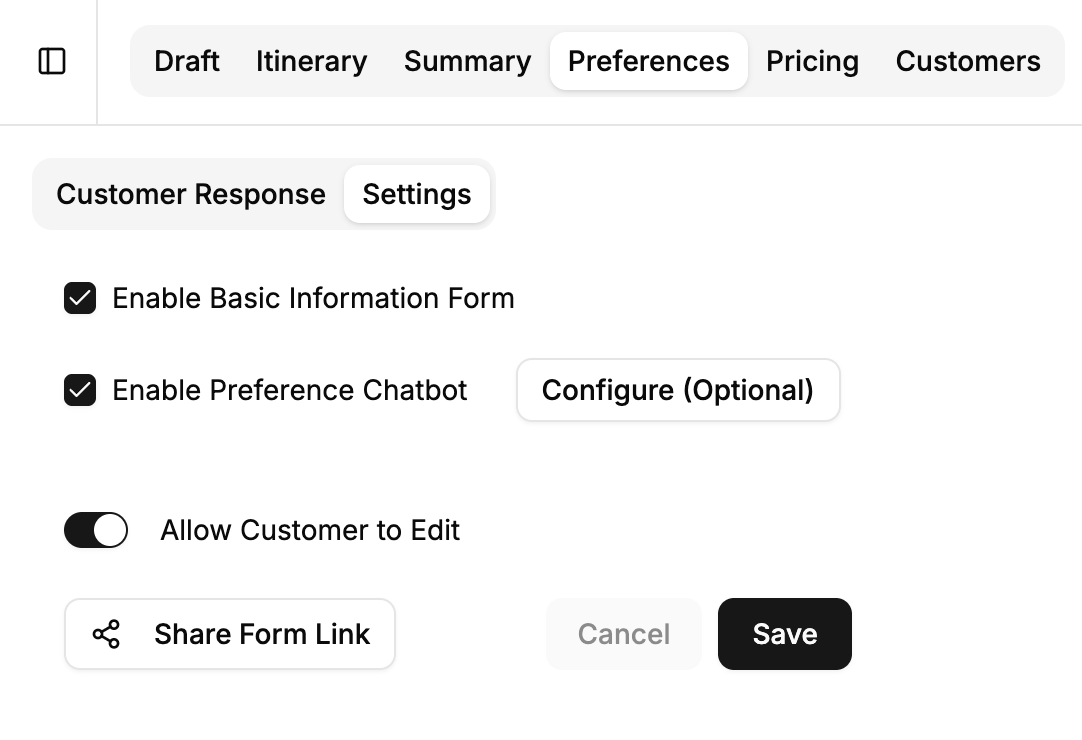
Step 1: Enable Basic Information
Collect essential details from your customers:
- Number of travelers (by category)
- Dietary restrictions
- Budget
- Departure city
- Passport country
Click the toggle to enable basic information collection.
Step 2: Configure Destination-Specific Preferences (Optional)
Gather deeper insights about customer preferences for each destination.
Default Behavior (No Configuration)
If you don't configure custom questions, our system automatically asks customers about:
- Pace - How fast-paced they want the trip (relaxed, moderate, active)
- Accommodation - Preferred type and comfort level
- Activities - Types of experiences they're interested in
Skip configuration if the default questions work for your needs. The AI will handle preference collection automatically.
Custom Configuration
Want to customize the questions? Enable destination-specific preferences and configure:
- Accommodation type (budget, mid-range, luxury)
- Activity interests (adventure, culture, relaxation, food, shopping, etc.)
- Travel pace (fast-paced, moderate, leisurely)
- Special needs or requirements
- Any custom questions specific to your business
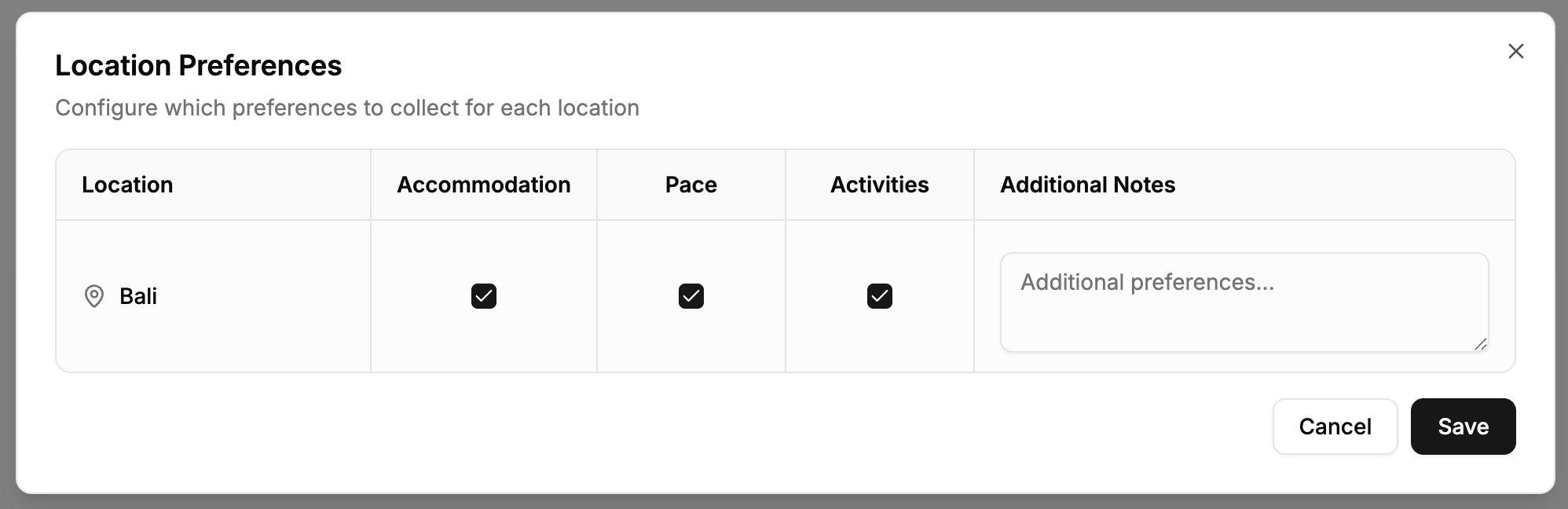
Multi-Destination Itineraries
For trips with multiple destinations, you can configure preferences for each destination separately:
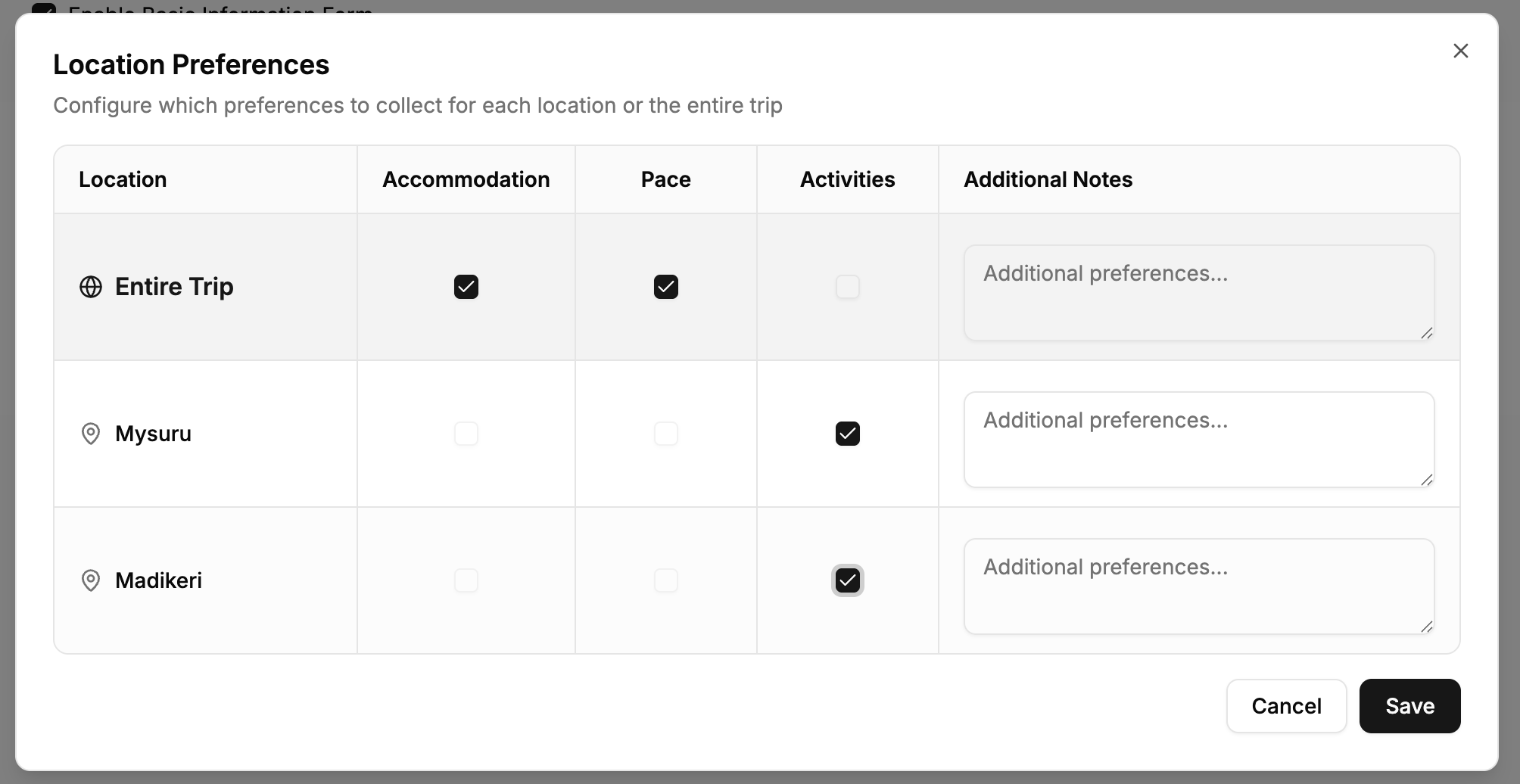
This helps gather destination-specific interests for more personalized recommendations.
Step 3: Share the Collection Link
Once configured and saved, share the preference collection link with your customer.
Ways to share:
- Copy link and send via email
- Send via WhatsApp
- SMS
- Any messaging platform
Step 4: Control Customer Editing
Use the "Allow Customer to Edit" toggle to control whether customers can modify their responses:
When to enable:
- Initial preference collection
- Customer needs to update their information
- Gathering requirements from multiple stakeholders
When to disable:
- Customer has finalized their preferences
- Ready to start creating the itinerary
- Want to lock in the requirements
Once you disable "Allow Customer to Edit", customers can no longer modify their basic form responses or preference chatbot conversations. Enable it again if they need to make changes.
Reviewing Customer Responses
After your customer submits their preferences:
- Navigate to Preferences > Customer Response
- View all collected information in a structured format
- Click on any response to see full details
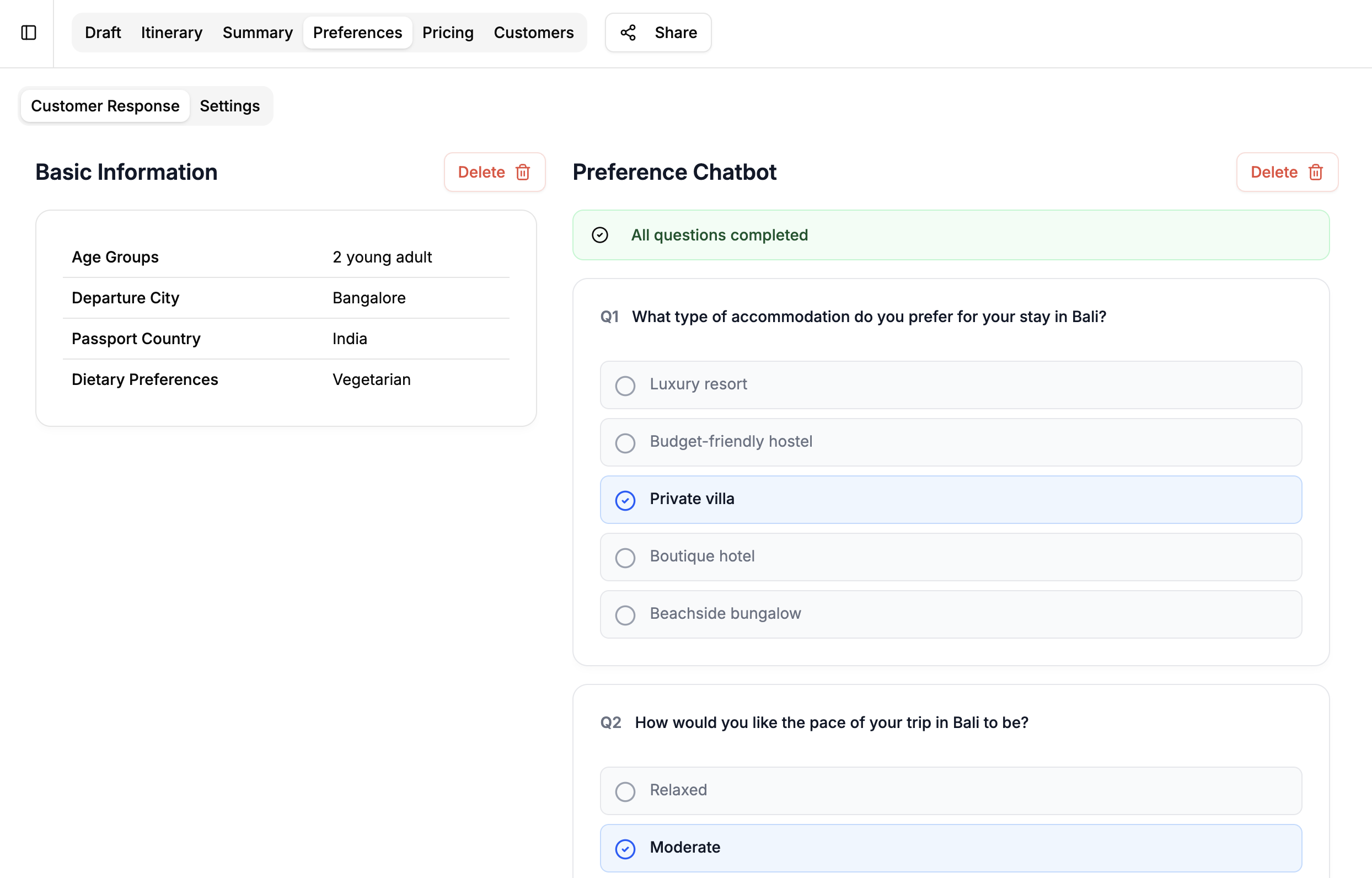
You can see:
- Basic information (travelers, budget, dates)
- Destination-specific preferences
- Chatbot conversation history
- Special requests or notes
Using Preferences in Your Itinerary
The AI Draft Assistant and chatbot automatically use customer preferences when:
- Suggesting activities that match their interests
- Recommending accommodation types within their budget
- Planning daily pace according to their preferred speed
- Including dietary considerations for restaurant recommendations
- Tailoring experiences to the group composition (family, couple, solo, etc.)
The more detailed the preferences, the better the AI can personalize the itinerary. Encourage customers to be specific about their interests and requirements.
You've now collected comprehensive customer preferences through a professional process!
Next: Create Your Draft →