Creating an Itinerary
Learn how to create a new itinerary in TravPilot.
Create New Itinerary
Click the Itinerary + button in the top-right corner to start creating a new itinerary.
Required Information
Fill in these basic details to get started:
Destination(s)
Where the trip will take place. Start typing to see location suggestions and select from the dropdown.
- Add multiple destinations for multi-city trips (e.g., Paris → Rome → Venice)
- Selecting from suggestions helps with location photos and AI recommendations
- The system recognizes cities, countries, and popular tourist destinations
Example: Type "Paris" and select "Paris, France" from the suggestions
Trip Title
Give your itinerary a clear, descriptive name that helps you identify it quickly in your list.
Good examples:
- "Smith Family - Paris & Rome Explorer"
- "Bali Honeymoon - Beach & Culture"
- "Dubai Business Trip - Tech Conference"
Avoid generic titles:
- ❌ "Trip 1"
- ❌ "Europe"
- ❌ "Customer Itinerary"
Include customer name + destination + trip type for easy searching later.
Start Date
The date when travel begins (first day of the trip).
- Click the calendar icon to select a date
- You can update this later if plans change
End Date
The date when travel ends (last day of the trip).
- Must be after the start date
- Includes the return/departure day
The system automatically calculates the number of days/nights based on start and end dates.
Customer Counts (Optional)
Specify the number of travelers to help with pricing, room configurations, and activity planning.
Categories:
- Adults - Adult travelers
- Children - Child travelers
- Infants - Infant travelers
Age ranges for Adults, Children, and Infants vary by destination, airline, and hotel policies. The system uses these counts for general planning and pricing calculations.
Why this matters:
- Pricing calculations - Hotels and activities often charge differently per category
- Room configurations - Determines number of rooms and bed types needed
- Activity capacity - Some tours have restrictions based on traveler category
- AI recommendations - Helps suggest appropriate activities
Example: Family trip = 2 adults + 2 children + 1 infant
You can update traveler counts later if numbers change. This information helps AI generate more appropriate accommodation and activity suggestions.
Traveling With (Optional)
Indicate the composition of the travel group to receive tailored recommendations.
Options:
- Solo - Single traveler
- Couple - Two adults traveling together
- Family - Parents with children
- Friends - Group of friends
- Corporate - Business/team travel
How this helps:
| Group Type | AI Tailors For |
|---|---|
| Solo | Flexible scheduling, group tours, solo-friendly activities |
| Couple | Romantic experiences, private tours, couple-focused accommodations |
| Family | Kid-friendly activities, family rooms, flexible timing with breaks |
| Friends | Group activities, adventure options, shared accommodations |
| Corporate | Meeting spaces, business hotels, efficient scheduling |
Example: Selecting "Couple" helps AI recommend romantic restaurants, sunset cruises, and couple spa packages instead of theme parks or children's activities.
This setting influences activity types, accommodation preferences (connecting rooms vs. suites), and pace (relaxed family pace vs. active adventure schedule).
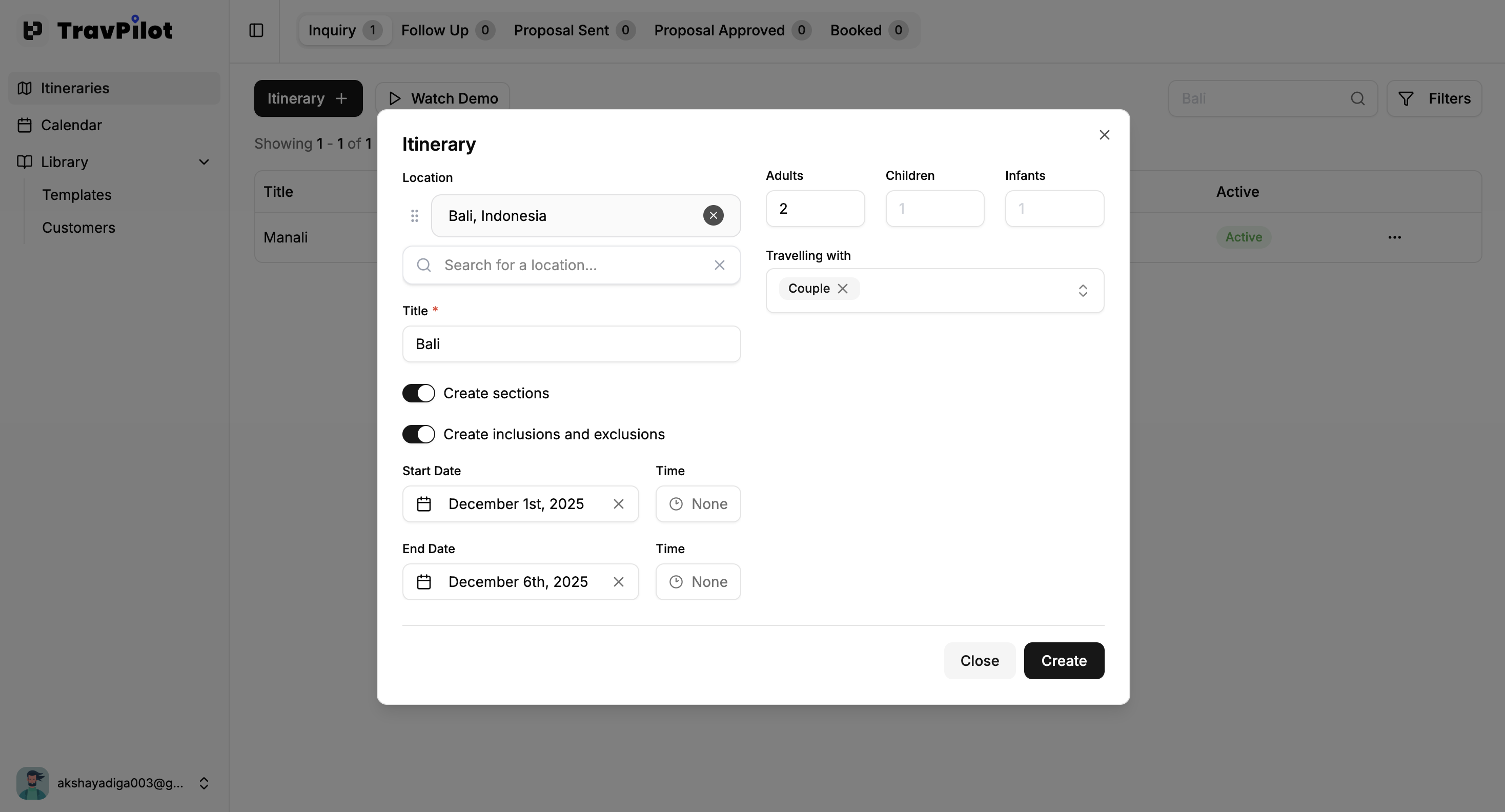
Click Create
Once you've filled in the details, click Create at the bottom of the form.
What happens next:
- Your new itinerary is generated with the basic information
- Initial status is set to "Inquiry"
- You're taken directly to the itinerary builder
- The itinerary appears in your active itinerary list
After Creating

Your new itinerary opens in the builder view with several tabs at the top:
- Draft - Create your initial itinerary content
- Itinerary - Build structured day-by-day plans
- Pricing - Calculate costs and margins
- Summary - Generate shareable text summaries
- Preferences - View customer requirements (if collected)
Next Steps
Now that you've created your itinerary, follow the workflow:
Option 1: Start with Preferences (Recommended)
Collect customer preferences first to gather detailed requirements. This helps AI generate better recommendations.
Best for:
- New customers you don't know well
- Complex or customized trips
- High-value bookings requiring personalization
Option 2: Start with Draft
Create a draft immediately if you already know what the customer wants.
Best for:
- Repeat customers with known preferences
- Standard package tours
- Quick quote requests
Next: Collect Preferences →