Sign Up and Login
Get started with TravPilot by creating your account and organization.
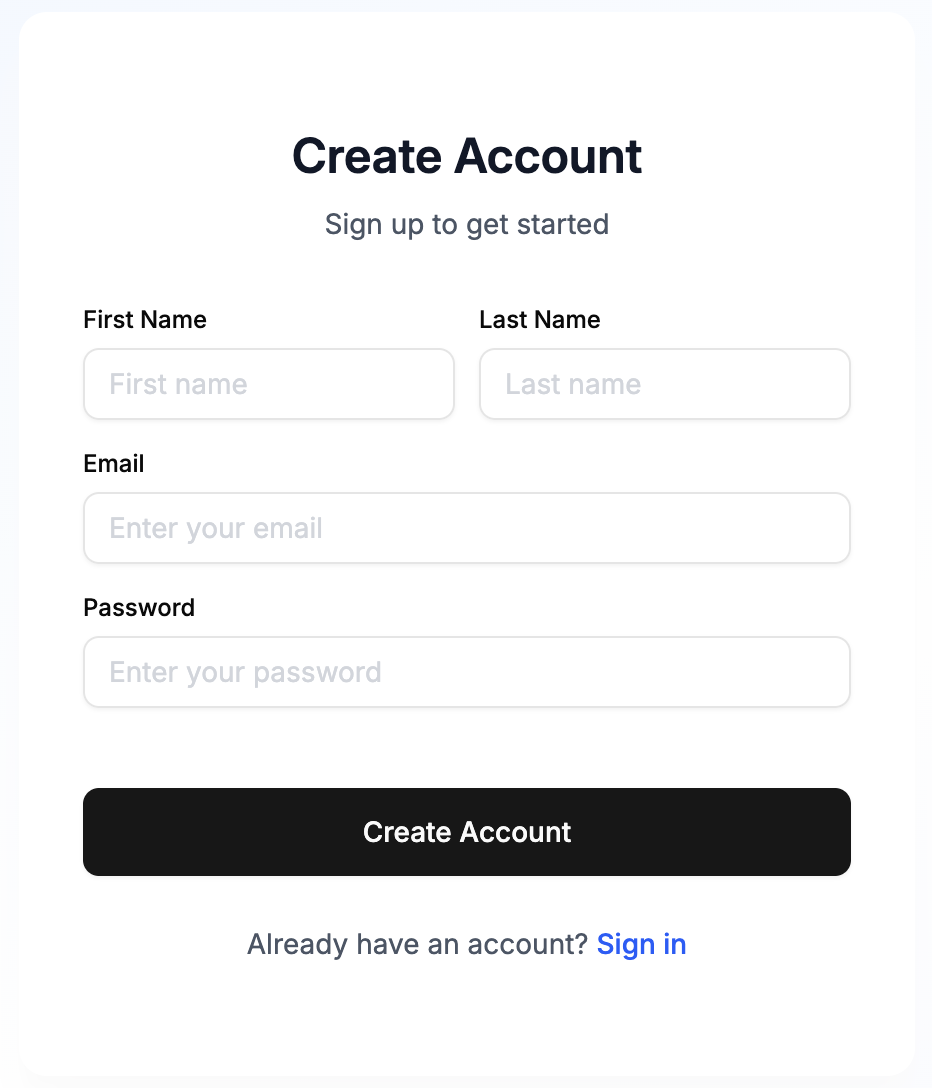
Create New Account
Steps:
- Go to travpilot.com
- Click on Sign In or Get Started
- Click on "Sign up" if you don't have an account
- Fill in your details:
- First name
- Last name
- Email address
- Password
- Click "Create Account"
Email Verification
You will receive a verification email at the address you provided.
- Check your email inbox
- Open the verification email from TravPilot
- Click the verification link
- Your email address is now verified!
If you don't see the email, check your spam/junk folder.
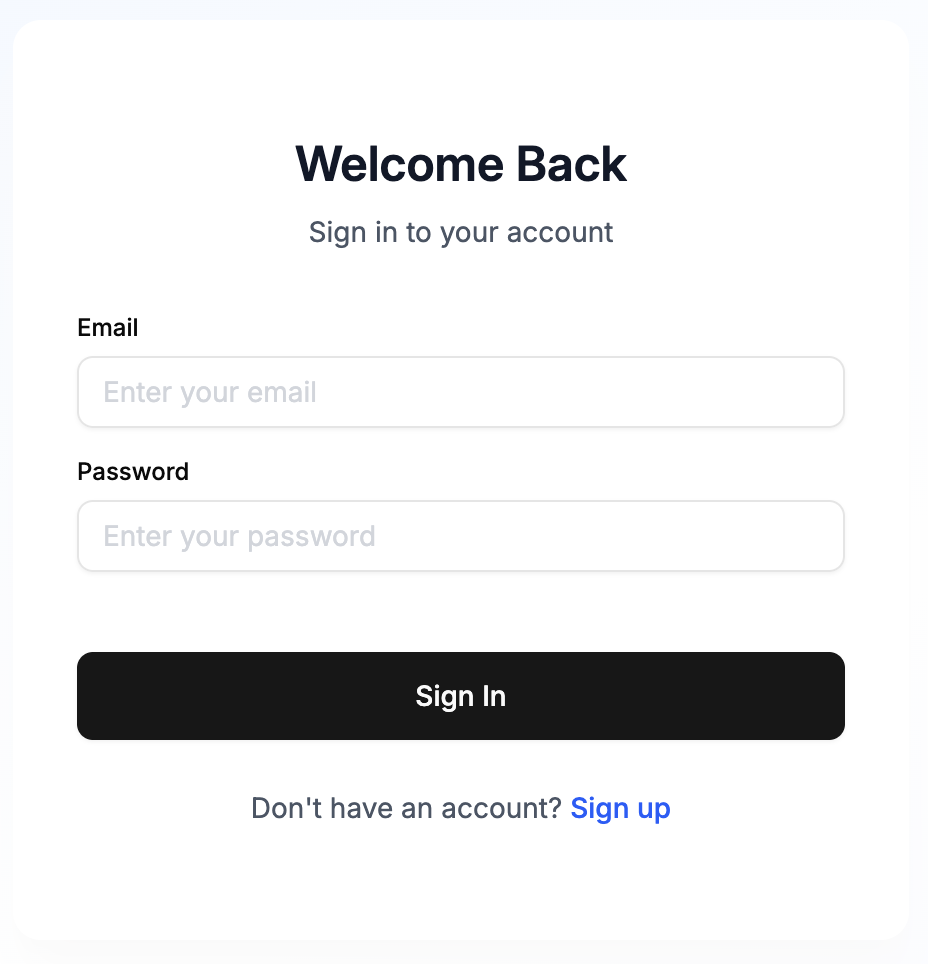
Sign In
After verifying your email, sign in to your account.
Steps:
- Go to travpilot.com
- Click on Sign In
- Enter your:
- Email address
- Password
- Click "Sign In"
Create Organization
After signing in for the first time, you'll need to create your organization.
If you don't have an organization yet, you'll be prompted to create one automatically after signing in.
Steps:
- You'll see the "Create Organization" screen
- Enter your organization name (e.g., "ABC Travel Agency")
- Click "Create Organization"
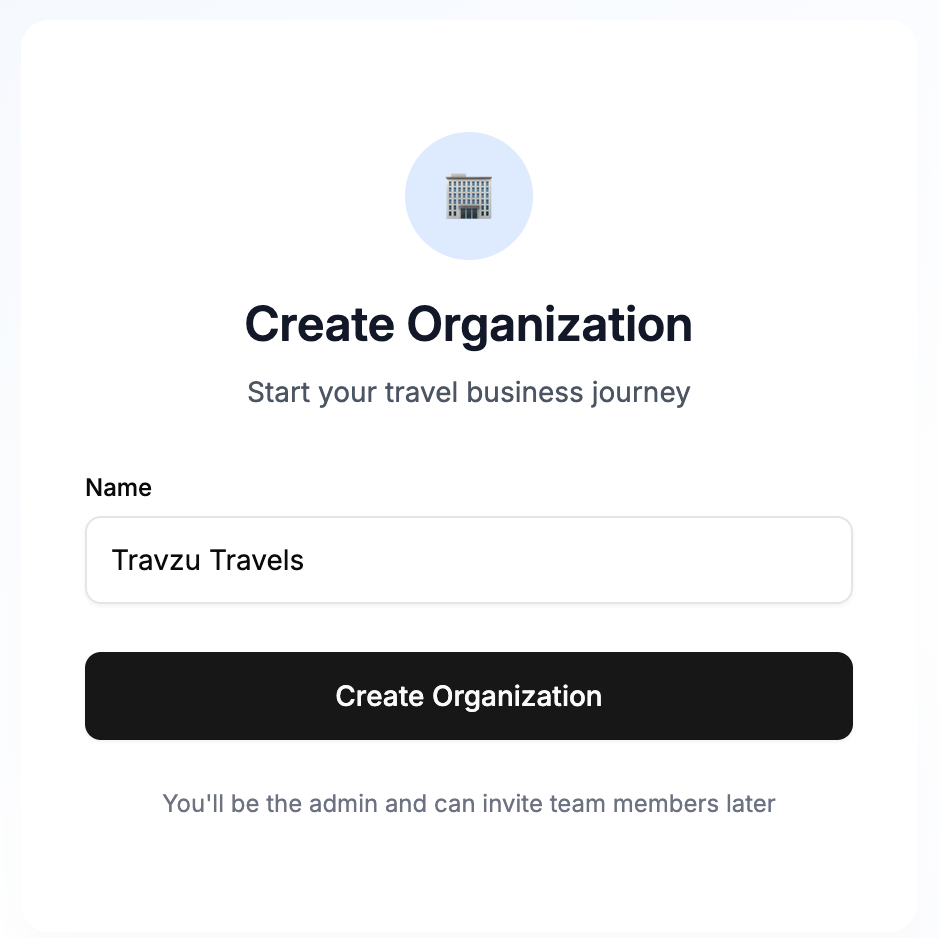
Your organization is now set up and you'll be taken to your dashboard!
Understanding Roles
Default Role
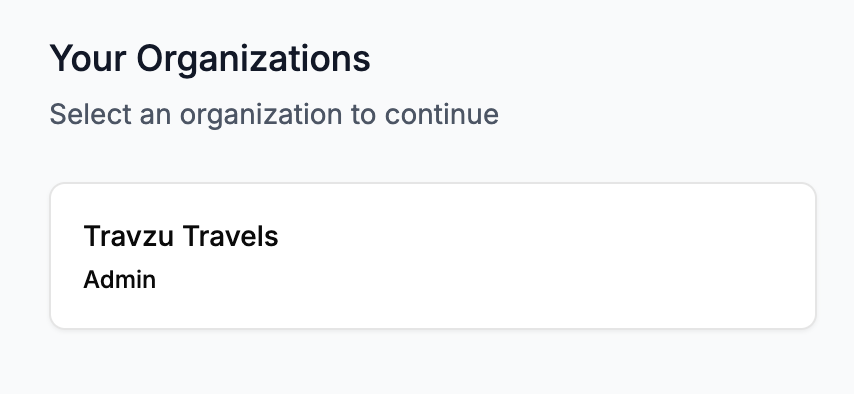
When you create an organization, you are automatically assigned as the Admin.
As an admin, you have full access to:
- Create and manage itineraries
- Manage customers
- Add team members (coming soon)
- Configure organization settings
- Access billing and subscription
Viewing Your Role
Click on your organization role on the right side of the navigation.
Forgot Password?
If you need to reset your password:
- Click "Forgot Password?" on the sign-in page
- Enter your email address
- Check your email for password reset instructions
- Follow the link to create a new password
- Sign in with your new password
Troubleshooting
I didn't receive the verification email
- Check your spam/junk folder
- Verify you entered the correct email address
- Wait a few minutes and check again
- Request a new verification email
I can't sign in
- Verify your email address is correct
- Check that Caps Lock is not on (passwords are case-sensitive)
- Ensure you've verified your email address
- Try resetting your password using "Forgot Password?"
My organization isn't showing up
- Ensure you've completed the "Create Organization" step
- Try signing out and signing back in
- Clear your browser cache and try again
- Contact support if the issue persists
I forgot my organization name
- Sign in to your account
- If you're a member of an organization, it will appear automatically
Security Tips
Strong Passwords
Create a secure password that includes:
- At least 8 characters
- Mix of uppercase and lowercase letters
- Numbers
- Special characters (!@#$%^&*)
Keep Your Account Safe
- Don't share your password with anyone
- Use a unique password for TravPilot
- Sign out when using shared computers
- Enable two-factor authentication (coming soon)
Welcome to TravPilot! 🎉