Adding Customers
Learn how to quickly add customers to TravPilot and efficiently collect their complete information using the profile update form.
Quick Add: Start with Just a Name
The fastest way to add a customer is to start with minimal information. You only need:
- First Name (required)
That's it! You can add more details later.
Steps to Add a Customer
- Click Customers in the left navigation panel
- Click the Add Customer button
- Enter the customer's first name
- Optionally add: Last Name, Email, Phone
- Click Save
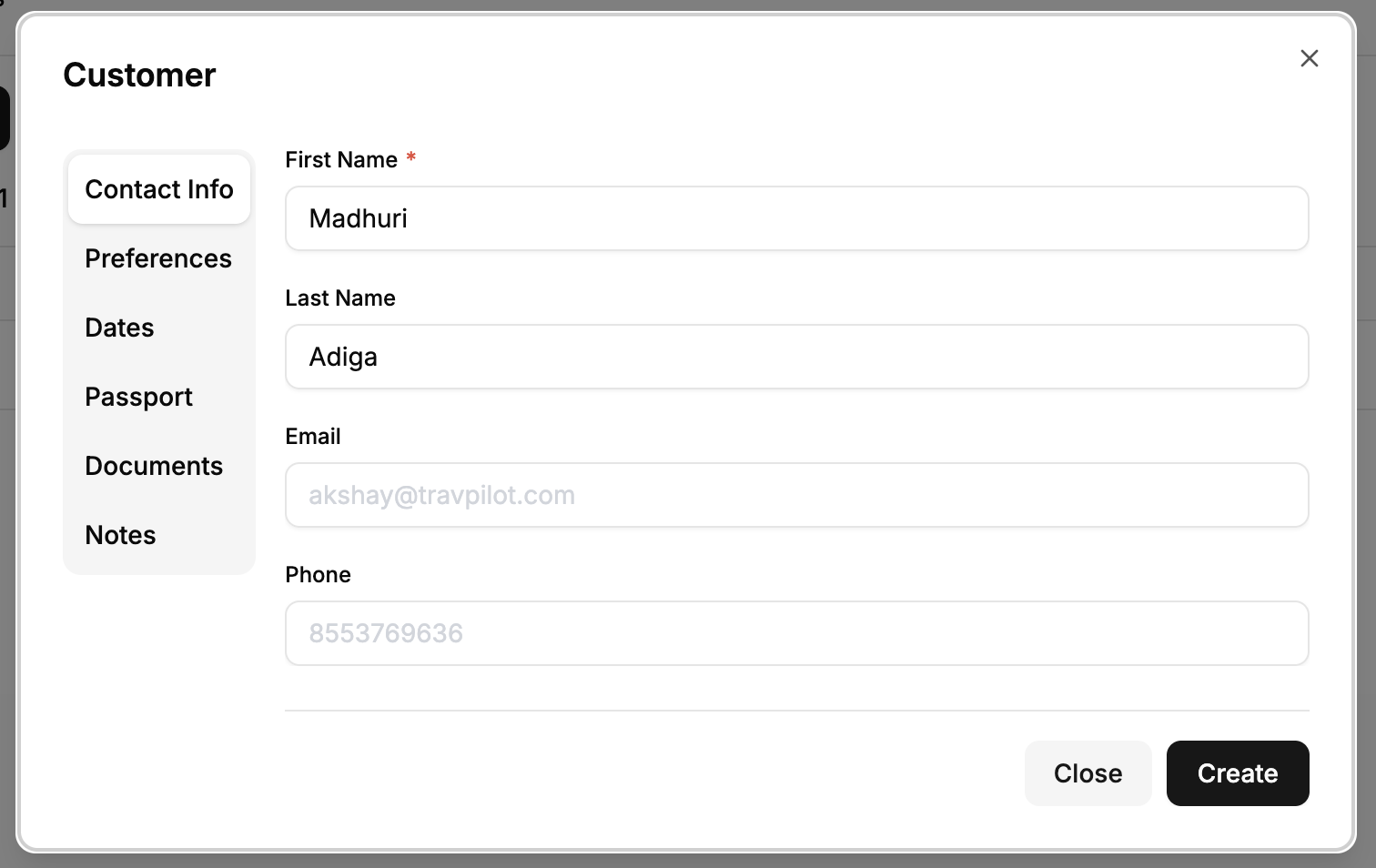
Customer Information Fields
While only the first name is required, you can store comprehensive customer information:
Basic Information
- First Name (required)
- Last Name
- Email Address
- Phone Number
Personal Details
- Preferences - Travel preferences, dietary restrictions, special requests
- Important Dates
- Birthday
- Anniversary
- Passport Details - Passport number, expiration date, issuing country
- Other Documents - Visa information, travel insurance details
- Notes - Any additional information about the customer
The Smart Way: Profile Update Forms
Gathering all customer information can be time-consuming during a call or meeting. TravPilot offers a better solution: Profile Update Forms.
How It Works
Instead of manually entering all customer details, you can:
- Create a customer with just their name
- Send them a secure link to update their own profile
- Customer fills in their information at their convenience
- Changes automatically reflect in your system
This approach:
- Saves you time during customer interactions
- Ensures accuracy (customers enter their own data)
- Reduces data entry errors
- Creates a better customer experience
Sending a Profile Update Form
Step 1: Edit the Customer
After creating a customer, access the profile update form:
Option A: Click on the customer row in the table list
Option B: Click the 3-dot menu on the customer row and select Edit
Step 2: Open Profile Update Form
In the edit customer modal, click the Send profile update form button.
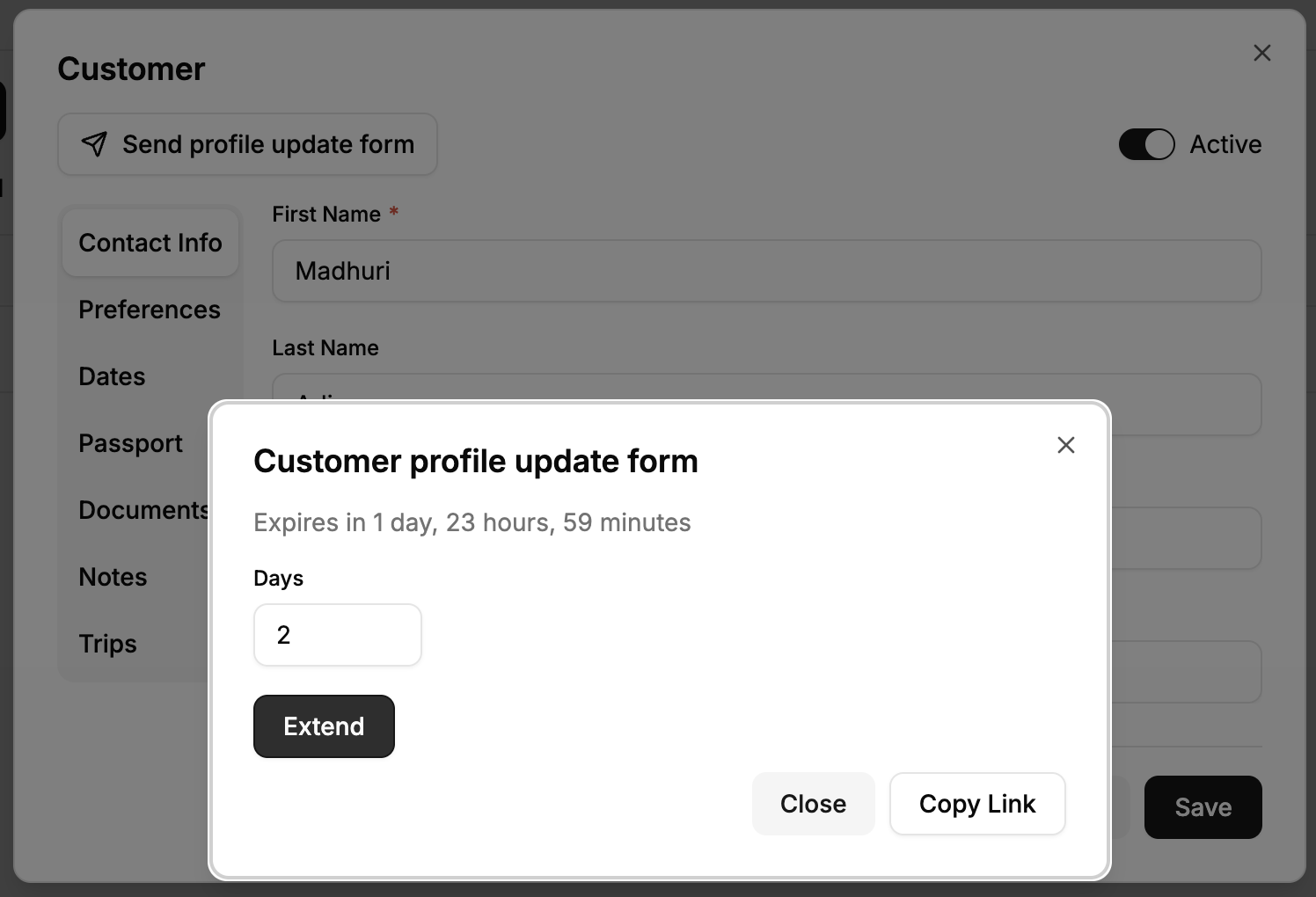
Step 3: Set Validity Period
The form will show how many days the customer profile update form is valid.
- Default validity: 2 days (set when customer is created)
- Available range: 1 to 7 days
- Adjust the number of days as needed
- Click Extend to update the validity period
Step 4: Copy and Share the Link
- Click Copy Link
- Send the link to your customer via:
- SMS
- Any messaging platform
What Happens Next
- Customer receives the link
- They open it and see all their current profile information
- Customer can update any field
- They click Save
- Changes are automatically reflected in your TravPilot account
- No manual data entry needed on your end!
Link Validity and Expiration
Active Links
Profile update form links are only valid for the specified duration (1-7 days). This ensures:
- Security of customer data
- Time-bound access to profile editing
- Control over when customers can make changes
Extending Validity
If a customer needs more time:
- Go back to the customer's edit page
- Update the validity period
- Click Extend
- The existing link remains valid for the new duration
Expired Links
Once a link expires:
- Customer cannot access the form
- You'll need to generate a new link by extending the validity period
- Previous customer data remains safely stored
Best Practices
During Initial Contact
- Create the customer immediately with just their first name during your call
- Collect critical information verbally if needed for immediate bookings
- Send the profile update form link right after the conversation
- Set appropriate validity - Give customers enough time (3-5 days recommended)
For Complete Profiles
- Use profile update forms for all non-urgent information
- Let customers enter their own passport details, dates, and preferences
- This reduces errors and saves significant time
Follow-Up
- If a customer hasn't filled out the form after a few days, send a gentle reminder
- Check the validity period before following up
- Extend the link if needed
Manual Entry Option
If you prefer to enter customer information yourself, or if you're updating details over the phone:
- Click on the customer from the list
- Select Edit
- Fill in any fields manually
- Click Save
All fields except First Name are optional, so you can fill in information progressively as you receive it.
Tip: The edit modal also displays all trips associated with the customer, giving you a quick overview of their booking history.
Common Questions
What if the customer doesn't have email? You can send the profile update link via SMS, WhatsApp, or any messaging platform. The link works on mobile browsers.
Can I edit a customer while they have an active profile update form? Yes, but be aware that if both you and the customer edit at the same time, the most recent save will take precedence.
What information can customers see and edit? Customers can view and edit all fields in their profile through the update form.
Is the profile update form secure? Yes, each link is unique to that customer and expires after the set validity period. The link cannot be reused after expiration.
Can I send a new link if the customer lost the first one? Yes, just extend the validity period and copy the link again. The link remains the same as long as the validity period is active.